
COURSE OPERATIONS / ACCESS SCHEDULES · ECOM RATINGS
The exact events behind a locked lesson, including first visits, reenrollment and UTC.
Editorial research · Sources verified October 26, 2026 · Practical implementation guide
THE ESSENTIAL RULE · 3 different clocks
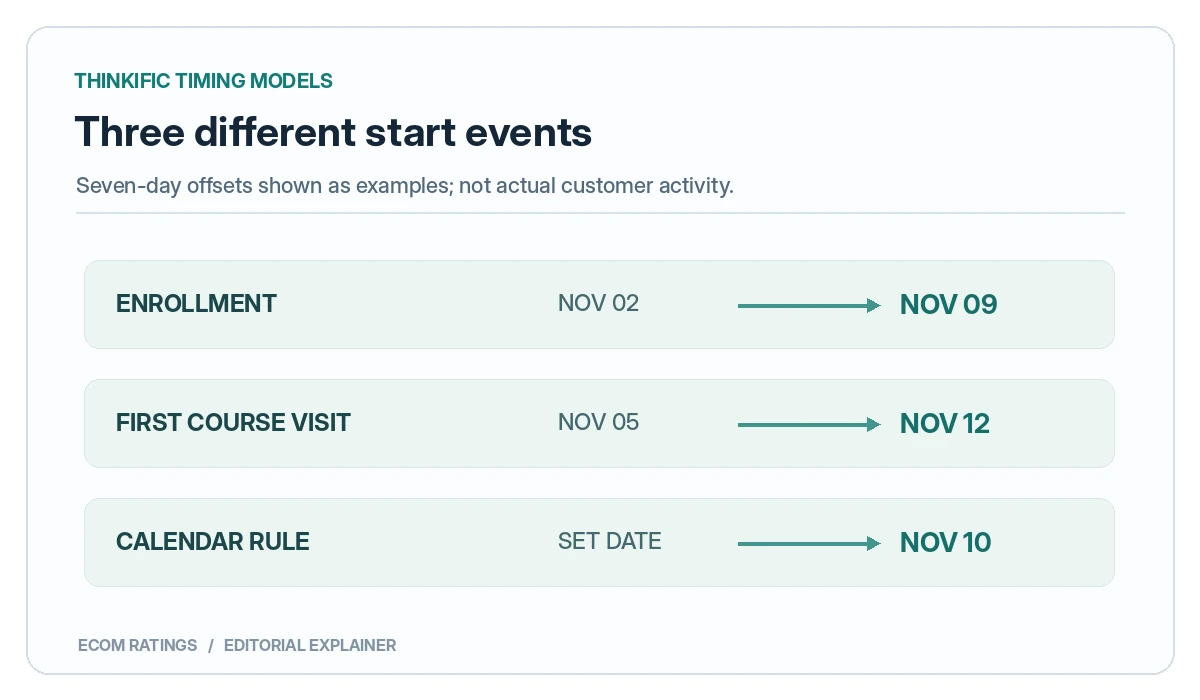
Original enrollment, first course visit, or a fixed date. Classic and New Course Builder labels differ.
Documentation checked October 26, 2026. A student buys a Thinkific course on Monday, opens it on Thursday, and asks why lesson two is still locked on the following Monday. The answer may be perfectly consistent with the course’s settings. The problem is that a drip schedule can count from an enrollment event, a first course-access event, or a fixed calendar date, depending on the selected mode and course builder.
A purchase date, an enrollment date, and the moment a learner first opens the course are not always the same. Nor is “one day later” necessarily midnight on the next date. For rolling schedules Thinkific documents a 24-hour interval based on the triggering event’s time of day. Understanding those distinctions is more useful than simply finding the drip toggle in the dashboard.
Quick answer: the three scheduling clocks
| Scheduling model | What starts the clock? | Typical use |
|---|---|---|
| Student enrollment date | The learner’s first enrollment in that course | Evergreen cohorts arriving on different dates |
| Student course start date | First access to that course’s Course Player | Bundles, early enrollment, students who start later |
| Specific calendar date | A fixed release date/time set by the creator | Everyone progresses through a scheduled cohort together |
The exact setting choices vary between Thinkific’s Classic Course Builder and New Course Builder. The classic support documentation explicitly distinguishes enrollment date, course start date, and calendar date, while the new builder’s documentation explicitly includes calendar-based schedules, staggered enrollment-based schedules, staggered learner-start schedules, and lesson-level customization. Confirm which builder your course uses before copying a tutorial written for the other interface.
Enrollment-date drip: the moment of first enrollment matters
Thinkific’s classic enrollment-date mode anchors the schedule to the learner’s first enrollment in that course. The enrollment date is day 0. A chapter configured for day 7 becomes available seven 24-hour periods after the original trigger, not merely at some point during the seventh calendar date displayed on a school calendar.
Consider a learner enrolled on October 1 at 5:00 p.m. in their local time zone. Under a day-7 release rule, the corresponding content becomes available on October 8 at 5:00 p.m. local time, assuming a normal seven-day period without a local clock change in the example. Day 14 would be October 15 at the same time. A student asking at 10:00 a.m. on October 8 may be early even though it is already the eighth.
The original enrollment also matters if access lapses and the student later reenrolls: Thinkific documents that the original enrollment date still applies to enrollment-date scheduling. An instructor should not assume that reenrolling starts an entirely fresh seven-day sequence.
Course-start drip: the learner’s first actual visit matters
For the Classic Course Builder, Thinkific describes the course-start trigger as the moment the learner first enters that course’s Course Player and views its lessons. Someone may buy a five-course bundle, receive course enrollments, and only open the third course several weeks later. Under a course-start schedule, the later first-access event begins that course’s drip clock.
Example: a learner purchases a bundle on October 1 but opens Course B for the first time on October 5 at 2:30 p.m. If a chapter is set for day 7 after course start, the example release would be October 12 at 2:30 p.m., not October 8. This difference should be visible in course communications: “seven days after your first visit” is different from “seven days after checkout.”
Thinkific also explains that if a student loses access and reenrolls, their original course start date still applies. The platform does not necessarily restart the clock when access is restored. That point is worth documenting for membership interruptions and manual enrollments.
Calendar-date drip: one shared release schedule
With a fixed calendar date, an instructor chooses when content becomes available, regardless of when the student enrolled. This model is suitable for a live intake or cohort program. A student joining after several lessons have already released can generally access those previously released lessons immediately, rather than waiting a full new interval for each one.
Calendar scheduling also has its own time-of-day behavior. Thinkific’s help article says that the main schedule sets the release time and individually assigned lesson dates inherit that same time. If the instructor expects every lesson to unlock at noon but sets the overall schedule at 6:00 p.m., changing individual lesson dates alone might not produce the intended noon release.
Worked timeline: one learner, three different answers
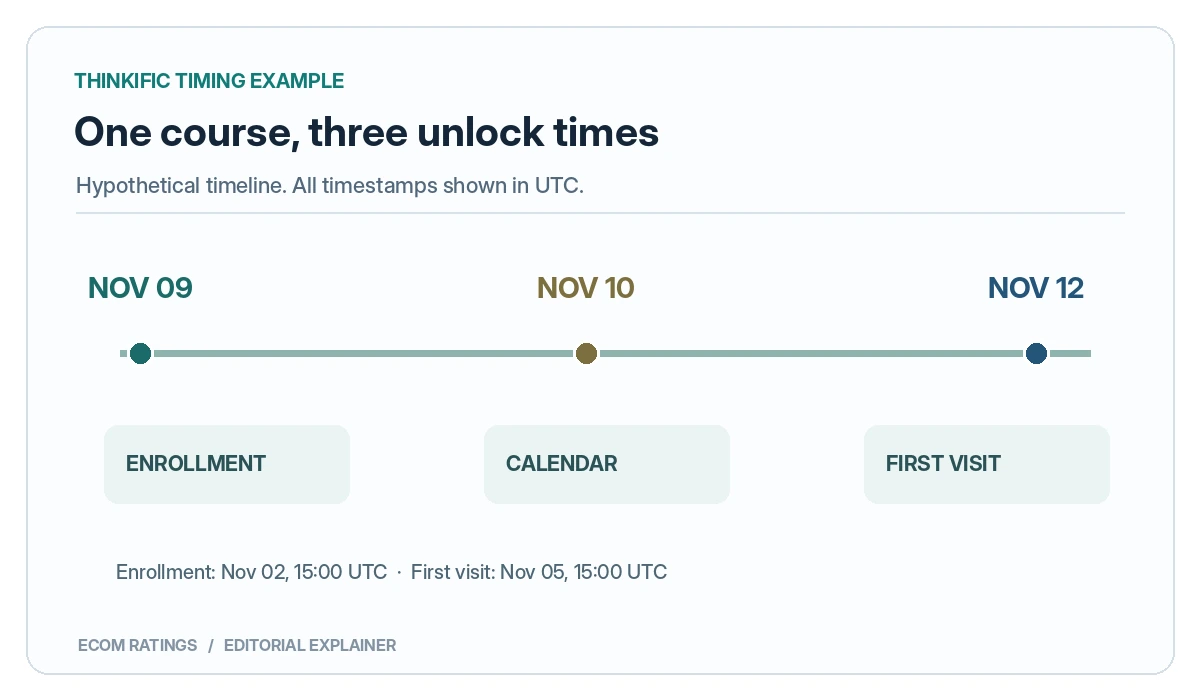
Suppose a training company sells a course with its second chapter set to unlock seven days after its selected trigger. The following example uses hypothetical learner events, displayed in UTC to make the comparison unambiguous:
| Event or rule | Example UTC timestamp |
|---|---|
| Enrollment completed | November 2, 15:00 UTC |
| First visit to Course Player | November 5, 15:00 UTC |
| Enrollment-based day 7 unlock | November 9, 15:00 UTC |
| Course-start-based day 7 unlock | November 12, 15:00 UTC |
| Fixed calendar schedule chosen by instructor | November 10, 15:00 UTC |
All three possible unlock dates can be correct for their respective settings. An ambiguous marketing promise such as “chapter two releases next week” does not tell the student which one applies. State the trigger clearly in the product description or onboarding email.
UTC, local clocks and what students actually see
Thinkific’s general time-zone guidance states that its dates and times are in UTC, and that creators cannot choose another platform time zone for the relevant scheduling controls. That is not the same as saying every student must mentally calculate UTC every time they open a course. Depending on the feature and interface, learners may see a localized release time. Thinkific’s new-course-builder documentation says locked chapters show the availability date and time in the learner’s own time zone.
For editors and support staff, the safest method is to record the canonical release instant in UTC and include a clearly labeled conversion when emailing students in a specific region. Avoid hard-coding “9 a.m. Eastern” for a long-term course without checking daylight saving time transitions. Nine in the morning in New York does not always correspond to the same UTC hour throughout the year.
For rolling enrollment/course-start releases, Thinkific’s classic documentation describes a precise 24-hour interval. If a student enrolls at 5:00 p.m., day 1 opens after 24 hours, not automatically at midnight. Use exact timestamps when diagnosing complaints; a date alone can hide the difference.
Why a lesson can remain locked after a purchase
The trigger was course start, not checkout
The student received access but did not open the specific course in the Course Player. Under classic course-start drip, the clock begins later. Confirm both the purchase/enrollment record and first course access.
A bundle enrollment does not mean all included courses have started
Each course may be opened on a different date. If your program relies on simultaneous access, a fixed calendar schedule may be more appropriate than per-course first-access timing.
The student is looking before the scheduled hour
A day-7 event set for 4:00 p.m. will not be available at 9:00 a.m. on that date. Check the timestamp, local time-zone rendering, and whether daylight saving transitions affect the conversion.
The instructor changed the drip mode
Thinkific’s classic configuration instructions warn that changing drip type clears the previous schedule. Before switching modes on a live course, record the existing chapter offsets and dates. Re-check every chapter after editing and use a student test account.
The builder interface differs from an older tutorial
Thinkific maintains distinct help guidance for its new and classic course builders. Do not infer that a menu label or chapter-level behavior shown in one version is necessarily identical in the other. Use the documentation relevant to the live course.
Six-point prelaunch test for a course creator
- Write down the promise in plain English. Is the student buying immediate access, a seven-day progression after enrollment, or a fixed-date cohort?
- Identify the builder and trigger. Confirm whether the course uses Classic or New Course Builder and review its active drip configuration.
- Inspect every chapter. Record each offset or absolute release date instead of checking only the first and last lesson.
- Enroll a test learner. Capture the exact enrollment time and, where relevant, the first Course Player visit.
- Check both creator and learner views. Confirm what the student sees when a lesson is locked and when it unlocks.
- Document timezone conversions. Save the canonical UTC time and a clearly identified local-time example for support.
For large launches, create a test learner in the same enrollment window as the expected cohort. Thinkific explicitly recommends this approach when many learners are starting under a newly configured drip schedule.
FAQ
Does paying for a Thinkific course start the drip automatically?
Not necessarily. Enrollment-based schedules start with enrollment; classic course-start schedules begin when the learner first accesses the Course Player for that course; fixed calendar schedules use the configured shared dates. A sale and a first course visit are distinct events.
Does “day 1” mean the next midnight?
For the rolling enrollment and course-start modes described in Thinkific’s classic documentation, day 1 means 24 hours after the triggering event. The calendar-date model follows its configured release time.
Can I force every student to follow the same weekly calendar?
A fixed calendar-based schedule is intended for common cohort dates. Check the current features supported by the course builder your school uses before publishing the schedule.
Will reenrollment reset a student to the beginning?
Thinkific states that the original enrollment date or course start date continues to apply to those classic modes after reenrollment. Test any special access-restoration workflow that also involves product expiration or manual changes.
The timeline audit: purchase, enrollment, activation and first visit
Support tickets often arrive with a payment receipt and an expectation: “I paid on Monday; it has been seven days.” That receipt is useful, but it is not a complete diagnosis of a drip rule. An instructor should build a four-event timeline: purchase time, enrollment or activation time, first visit to the specific course’s player, and the configured lesson release time. These events may be separated by seconds, days, or weeks depending on bundles, preorders, manual enrollment, and the learner’s behavior.
Imagine a buyer pays on November 2 at 09:00 UTC, an administrator enrolls them on November 3 at 16:00 UTC, and they first open Course B on November 6 at 20:00 UTC. A lesson defined as day 7 is not guaranteed to open on November 9. Under a classic enrollment-date rule based on the November 3 event, the expected time would be November 10 at 16:00 UTC; under first-course-access timing, it would be November 13 at 20:00 UTC. The examples are arithmetic demonstrations, not a report of a live Thinkific account.
There is another distinction during bulk migration. Thinkific’s bulk-import documentation describes an Activated_at field used in enrollment and drip calculations. Someone importing a historical cohort should confirm how that value is set instead of assuming the date of CSV upload becomes the student’s new day zero. This matters when transferring schools from another LMS: accidental backdating can immediately expose chapters that were supposed to be released progressively.
New Course Builder: the four choices that can be confused
The New Course Builder documentation explicitly describes more than just “rolling” and “fixed” schedules. Its choices include immediate access on enrollment, a calendar-date release, staggered release from enrollment, and staggered release from the learner’s first course start. Each answers a different instructional question. Immediate enrollment access suits an open library. Calendar dates suit one synchronized cohort. Enrollment-based intervals suit students who progress from registration. First-visit intervals suit courses inside a bundle that students may begin at different times.
Thinkific also says the new builder permits custom release dates at the chapter or lesson level. That means a schedule labeled “weekly” may contain exceptions. An instructor may intentionally release an orientation lesson on day zero, a quiz on day nine, and the next module on day fourteen. Troubleshooting should inspect the actual per-item rule rather than deducing every lock date from the sequence of chapters shown on the course page.
Do not mix screenshots from an old Classic Course Builder article with a new-builder setup guide. The underlying scheduling concepts overlap, but menu placement, naming, and specific controls differ. New-builder support also notes that an active schedule update takes effect immediately for current enrollees. Therefore, editing a module after launch should be handled as a cohort-wide change, even if the instructor only intended to adjust access for one late student.
A careful timezone policy for an international cohort
Two independent questions need answers: what instant does the platform use for unlocking content, and how does the interface display that instant to a human? Thinkific’s general time-zone support says administrative dates and times use UTC, while its learner-profile guidance explains that students can see certain drip notifications adjusted to their selected timezone. The New Course Builder guide also describes learner-local display for locked lessons. These descriptions are compatible when the underlying event is an absolute instant with a local presentation layer.
Write schedules in both formats when the audience crosses regions. For example, “Chapter 2 opens at 15:00 UTC on November 10” is unambiguous. An accompanying New York time should be calculated for the actual date, not copied from a summer campaign. On November 10, 2026, New York is on Eastern Standard Time (UTC−5), so the example would be 10:00 a.m. there. In London the corresponding instant would be 3:00 p.m. This is a planned example; administrators should check the actual dashboard value and what their learners see.
The distinction matters around daylight saving transitions. Seven blocks of 24 hours after a first-enrollment timestamp are not always the same as “next Tuesday at the same wall-clock hour” in a timezone that changes clocks during the interval. For rolling schedules, Thinkific’s Classic documentation emphasizes elapsed 24-hour periods. Avoid informal statements like “midnight every Monday” when the system is actually counting precise intervals from individual student events.
An acceptance-test plan for four different learner states
Do not rely on one newly created student account. Test at least four conditions: (1) immediately enrolled but never opened the course, (2) enrolled and already accessed the player, (3) enrolled in a bundle but opening this particular course for the first time, and (4) previously enrolled, lost access, and then reenrolled. These cases help reveal whether a schedule is anchored to enrollment history or course-player history. Thinkific documents that original timestamps can persist through reenrollment in the classic workflow, so the fourth case is especially important for subscription schools.
For each test, record the event timestamp, selected drip mode, lesson offset or fixed date, predicted UTC release, observed locked/unlocked state, and displayed local timestamp. A practical test sheet can contain only six columns. The value comes from recording the expectation before visiting the learner account. Without that step, testers may unconsciously treat whatever the screen shows as the intended outcome.
Run the test again after editing chapter content or changing a custom lesson release. Finally, verify student communications. A course product page advertising “new content each Monday” can contradict a rolling schedule based on each user’s purchase time. The copy should name the scheduling anchor, because no amount of technical correctness will prevent dissatisfaction when the marketing promise uses a different clock.
Editorial conclusion
The most frequent drip mistake is not a complicated software failure. It is communicating an interval without specifying its starting event. Thinkific can accommodate different educational models, but an enrollment date, a first course visit, and a shared calendar date produce materially different learning timelines. Define the trigger in student-facing language, document the UTC timestamp where relevant, and test with a real learner account before promising a release day.
For the broader learning-platform assessment, see the Ecom Ratings Thinkific review. This guide addresses only the mechanics and communication of timed lesson access.
Primary sources and verification
- Thinkific: Drip Schedule overview (Classic Course Builder)
- Thinkific: Student Enrollment Date
- Thinkific: Course Start Date
- Thinkific: Calendar Date
- Thinkific: New Course Builder drip schedules
- Thinkific: Time-zone guidance
- Thinkific: New Course Builder schedule types
- Thinkific: learner timezone display and admin UTC
- Thinkific: Activated_at bulk import behavior
Editorial note: Scheduling interfaces and course-builder support can change. Verify behavior in a test enrollment before making student-facing guarantees.
Ecom Ratings editorial disclosure: This is a documentation-based guide with original illustrative examples, not a live account benchmark. Feature availability and API behavior can change. Test against your own plan, configuration and current provider documentation before deploying pricing or access changes.